Configure Your ChargePoint Charger
Step 1: Link Your Phone to Your Charger
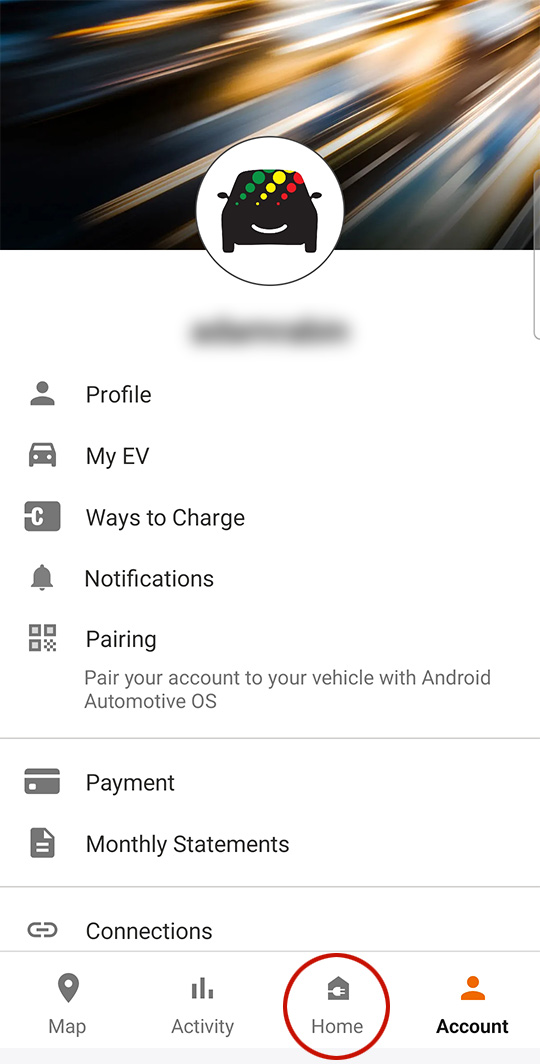
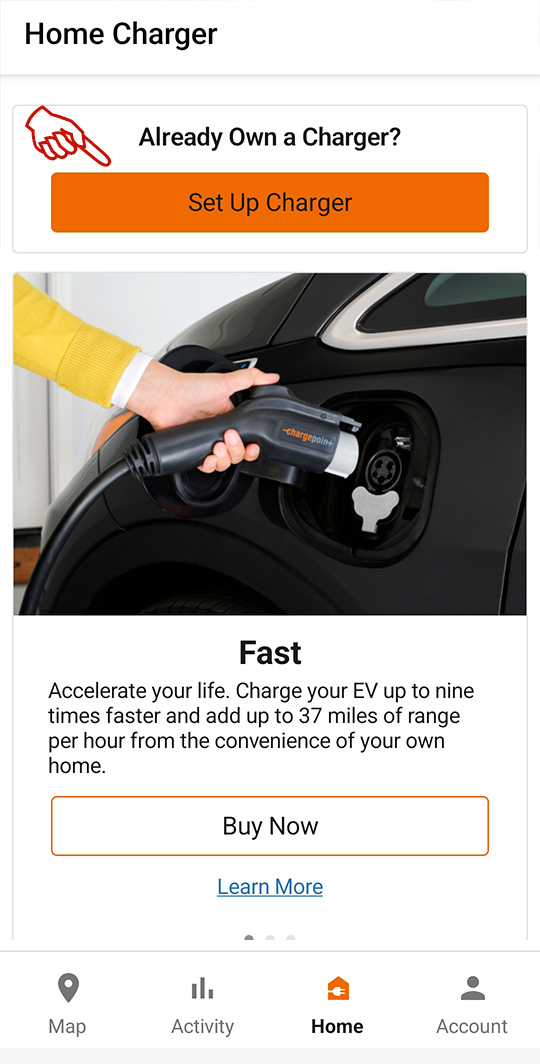
Download the ChargePoint app from the Android or Apple store. Once you have created an account, click the Home button.
Click "Set Up Charger"
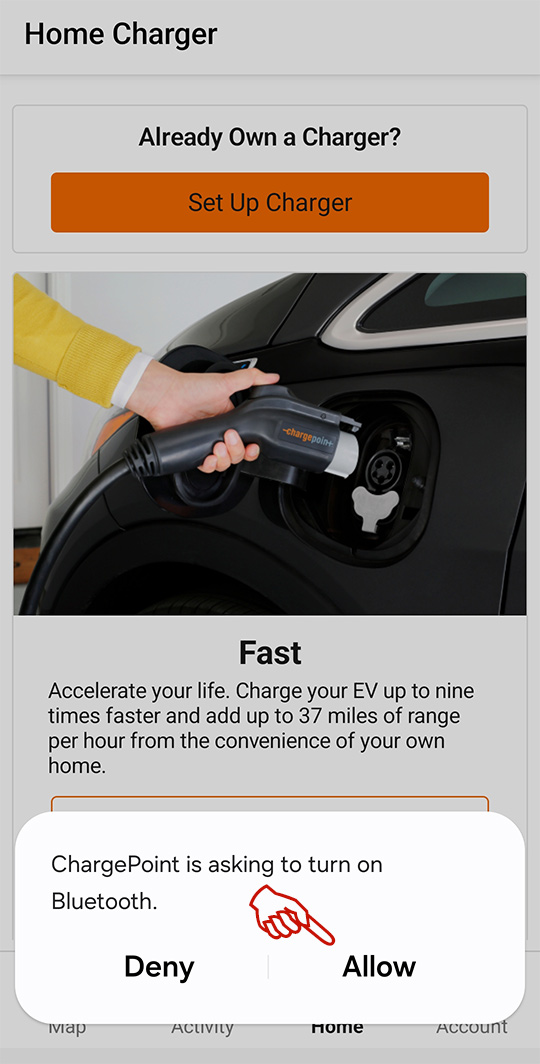
The app will need to turn on your Bluetooth while performing this initial set up.
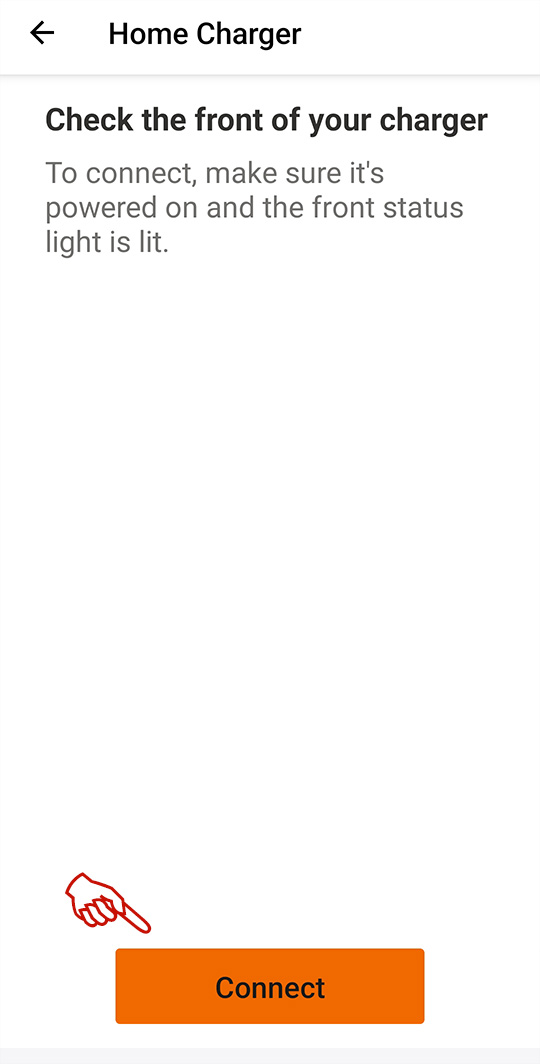
Click "Connect"
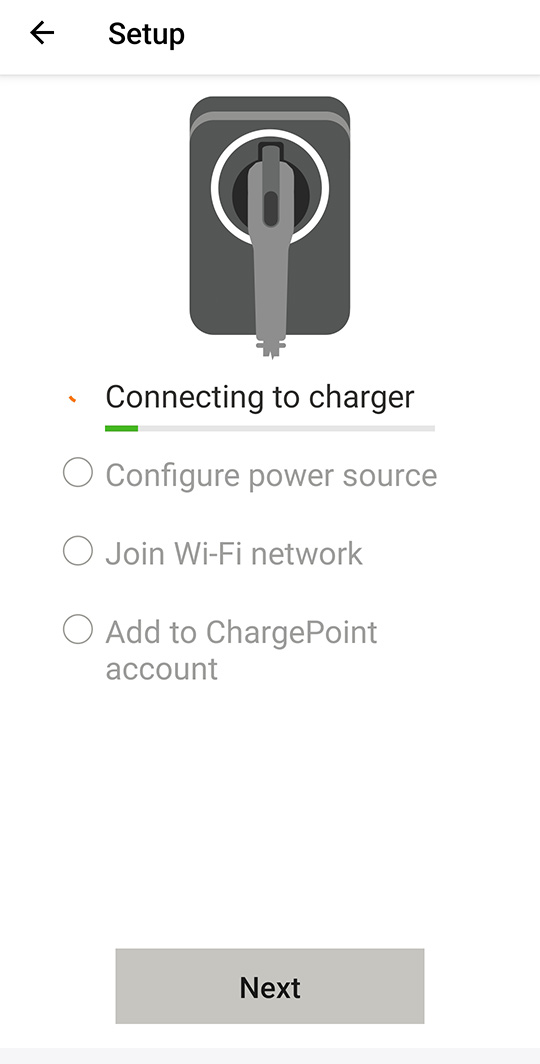
The app will look for your charger.
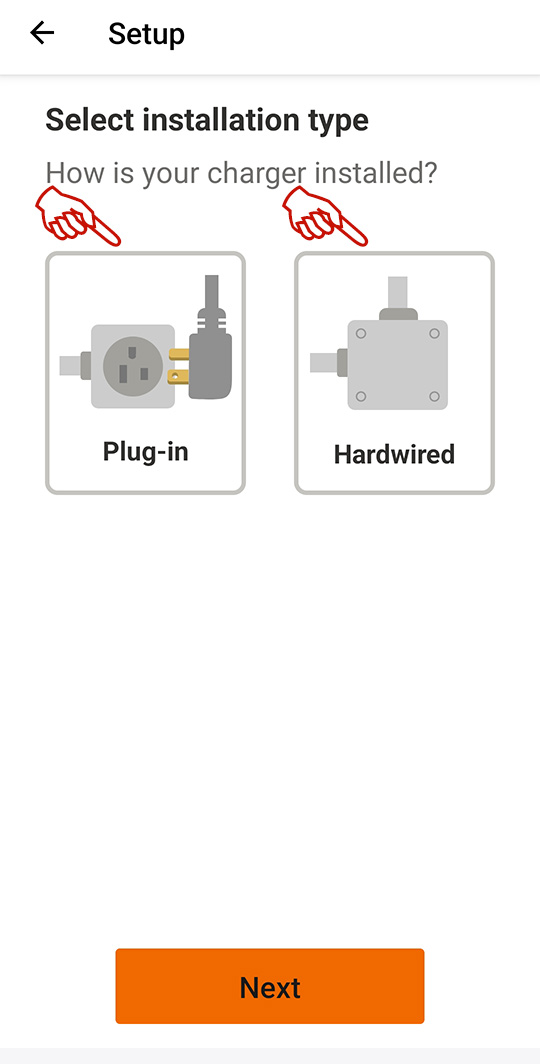
Select the correct option for your charger.
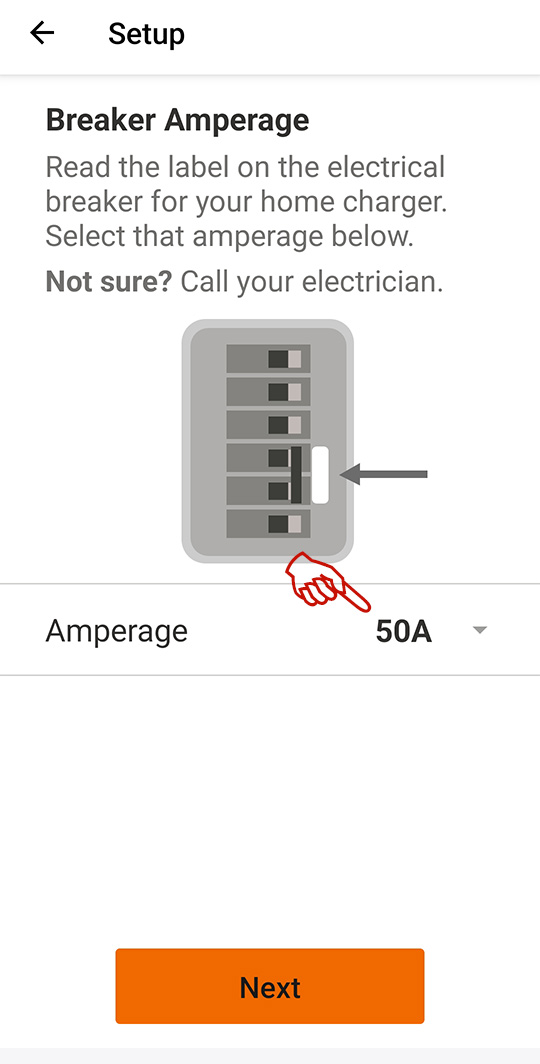
Select the correct amperage of the breaker your charger is connected to. Your electrician may have told you this. You may also look at your breaker box to find this out.
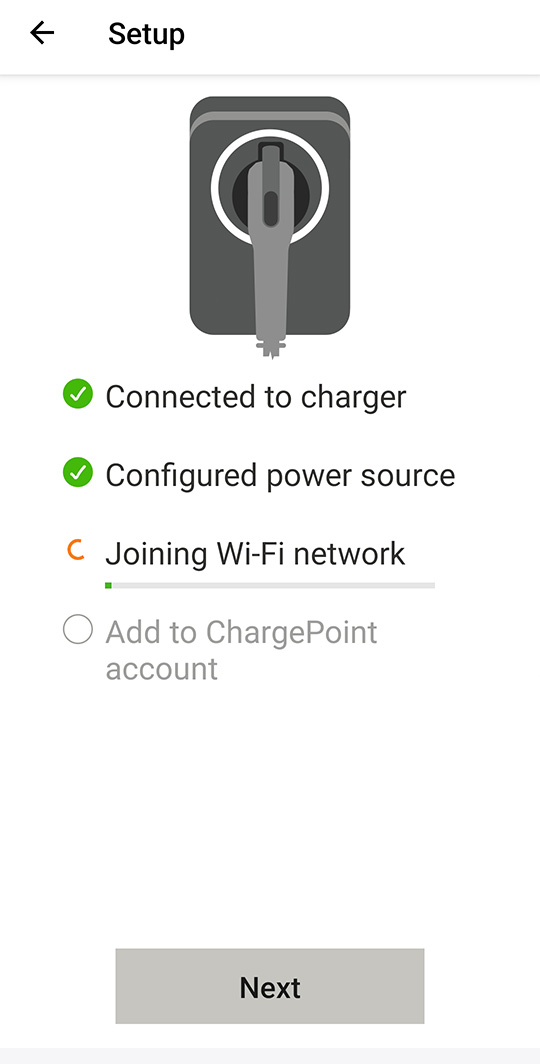
Wait and/or follow any prompts to connect the charger to your home wi-fi.
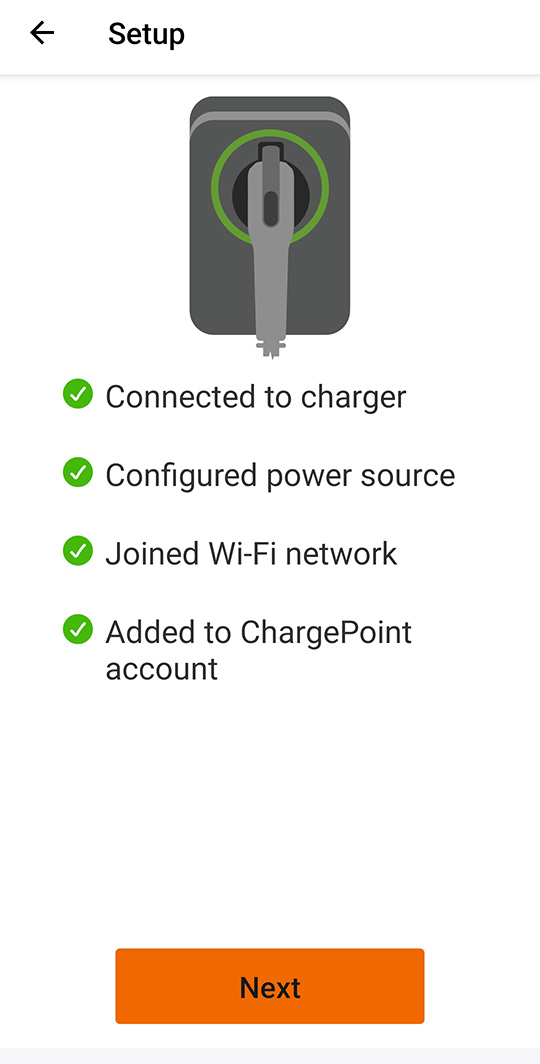
You're just about done.
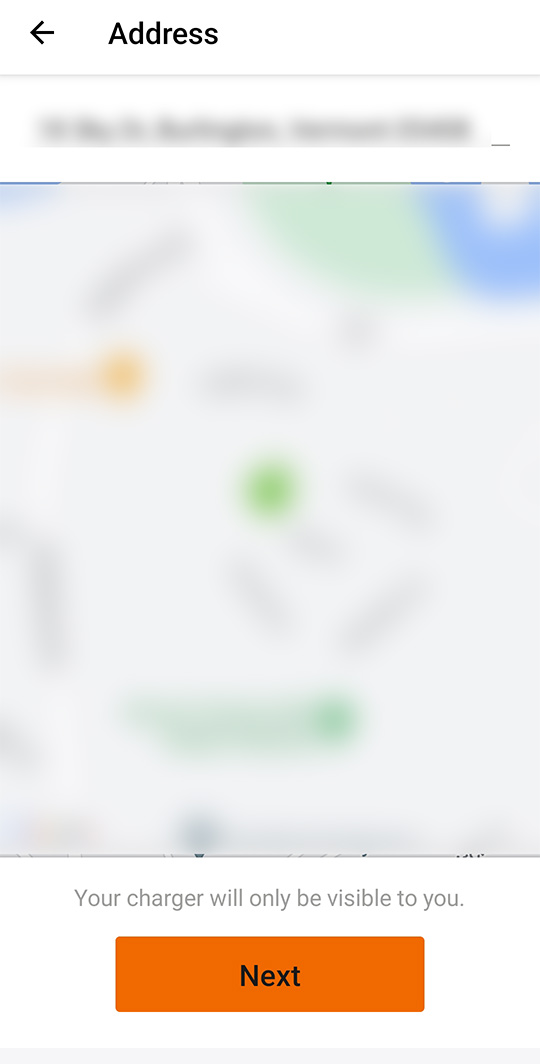
The next screen should show a map of your home.
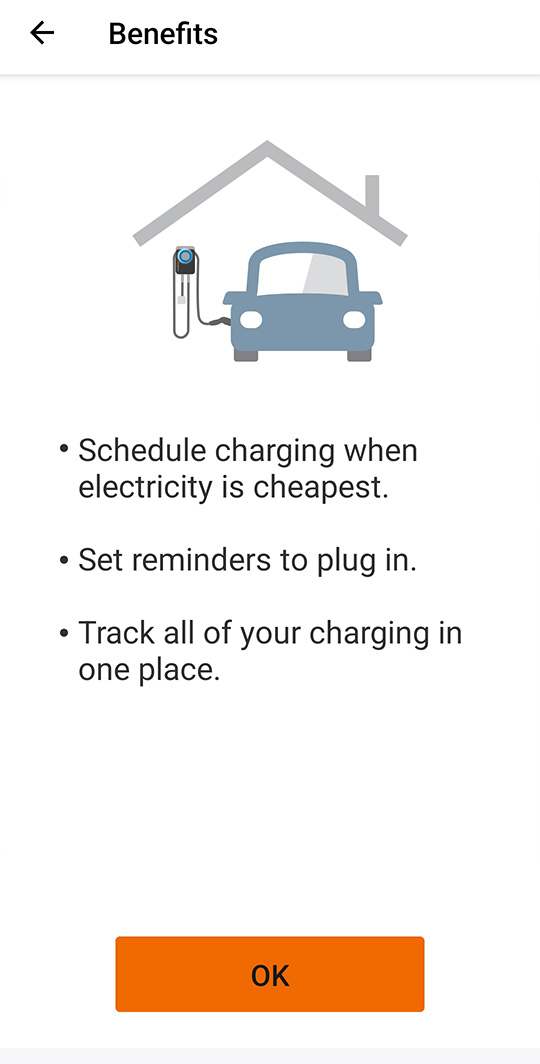
Click "Ok"
Step 2: Enroll in the EV Rate
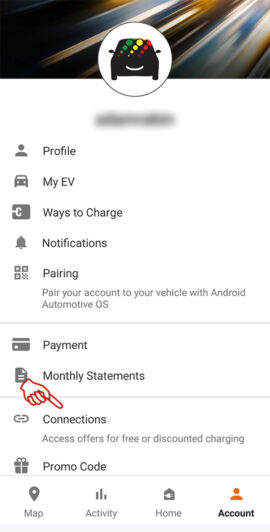
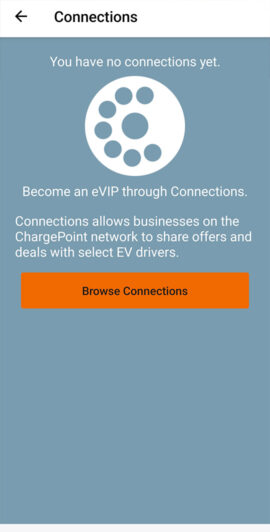
From the main menu, click "Connections"
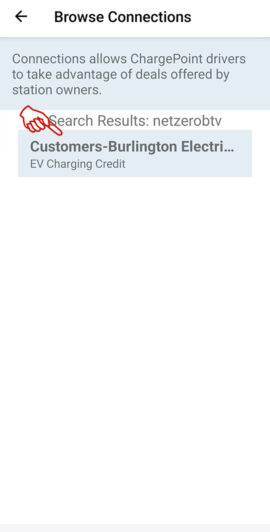
Click "Browse Connections"
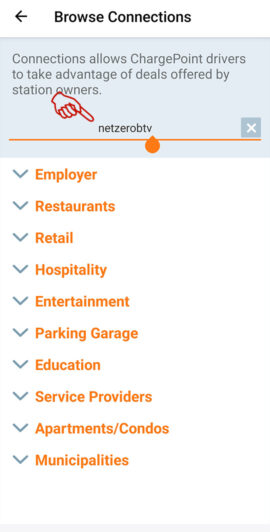
Type in BED's special code: netzerobtv
Click the "Customers-Burlington Electric..." option
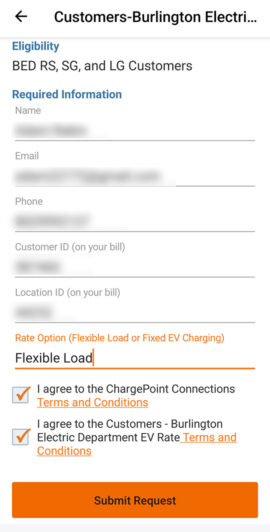
Enter your contact and account numbers (see your bill).Type in "Flexible Load" or "Fixed Schedule" in the bottom line. Click "Submit Request."
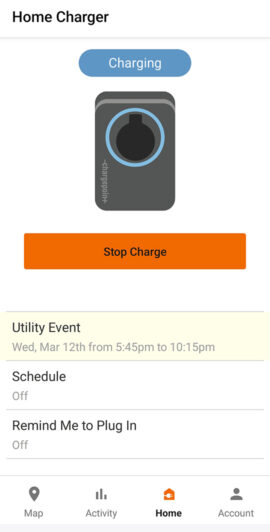
You are all set. If you selected "Flexible Load," you may see the next scheduled Utility Event listed on the screen. If you chose "Fixed Schedule," you will need to continue on to set up your charger schedule.
Step 3: Set Your Schedule Your Charger
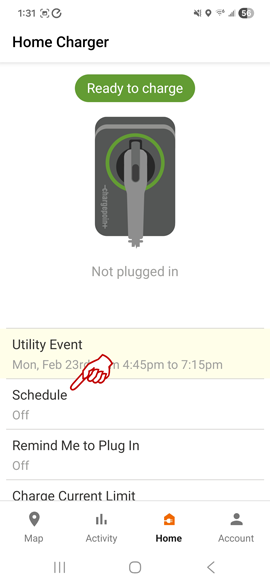
Open your ChargePoint and click the "Home" button.
Click "Schedule"
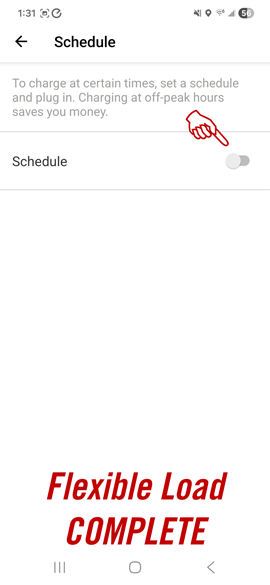
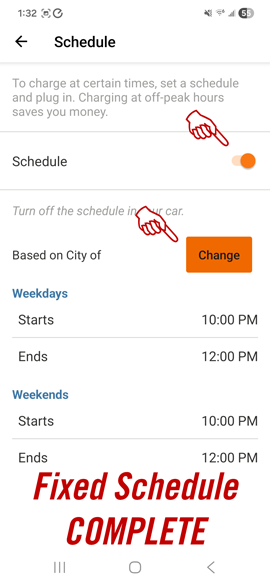
For "Flexible Load," ensure that the Schedule toggle is off (grey) as shown. You are done!For "Fixed Schedule," turn the Schedule toggle on (orange) and continue to the next step.
Set the hours on this screen to the hours shown. Click the "Select" or "Change" button below. Choose your Utility "City of Burlington-Electric" and choose your plan "EV: Electric Vehicle Rate."